This is the quickest path from a blank account to a finished, branded inspection report you can hand to a customer. We'll go end to end: add a vehicle, start a report, fill it in on the walkaround, and sign it off. Once you've done it once, every report after follows the same rhythm — and most of it is free.
#What this is for
An inspection report is your dated, defensible record of a vehicle's condition at a single point in time: its mileage, fuel or charge level, tyre tread, a photographed walkaround, any damage marked on a diagram, and a pass/advisory/fail checklist. When you sign it off, vehReports locks it as a permanent read-only record, turns it into a branded PDF, and emails it to the customer automatically.
Operators use this for inbound and outbound rental handovers, fleet condition checks, pre-purchase and post-wash inspections, dealer prep, and workshop sign-offs — anything where you need proof of what state a vehicle was in and who confirmed it. It is for inspecting your own or managed vehicles, not for checking a stranger's car history.
#What you need before you start
You really only need one thing: the vehicle's registration (number plate / VRM). Everything else is optional or filled in for you:
- A customer is optional, but worth adding if you'll be emailing them the finished report or hiring the vehicle to them. You can add them up front or attach them later.
- Credits are not needed to build a report. Building a draft, running checks, adding records and previewing are all free and unlimited. Signing off is the only step in this whole flow that uses a credit (one credit, about £1) — and new accounts start with free welcome credits (around 10), so your first few reports are effectively on the house. If you ever run out, you can still build the entire draft; only the final sign-off is held until you top up. See Understanding credits — what's paid and what's free.
- A set-up company account with at least one inspection template. If you've just signed up, a default template is in place, so you can start straight away. See Setting up your company account.
If this is day one, a quick read of A tour of your dashboard will help you find your way around — but you can also just follow the steps below.
#Step 1 — Add the vehicle
Go to Vehicles and add one by its registration. On save, vehReports looks the vehicle up automatically and fills in the make, model, colour, fuel type, current tax status, MOT status and the latest MOT mileage reading — so the number plate is usually all you need to type. This lookup is free, and you can refresh it any time from the vehicle's own page.
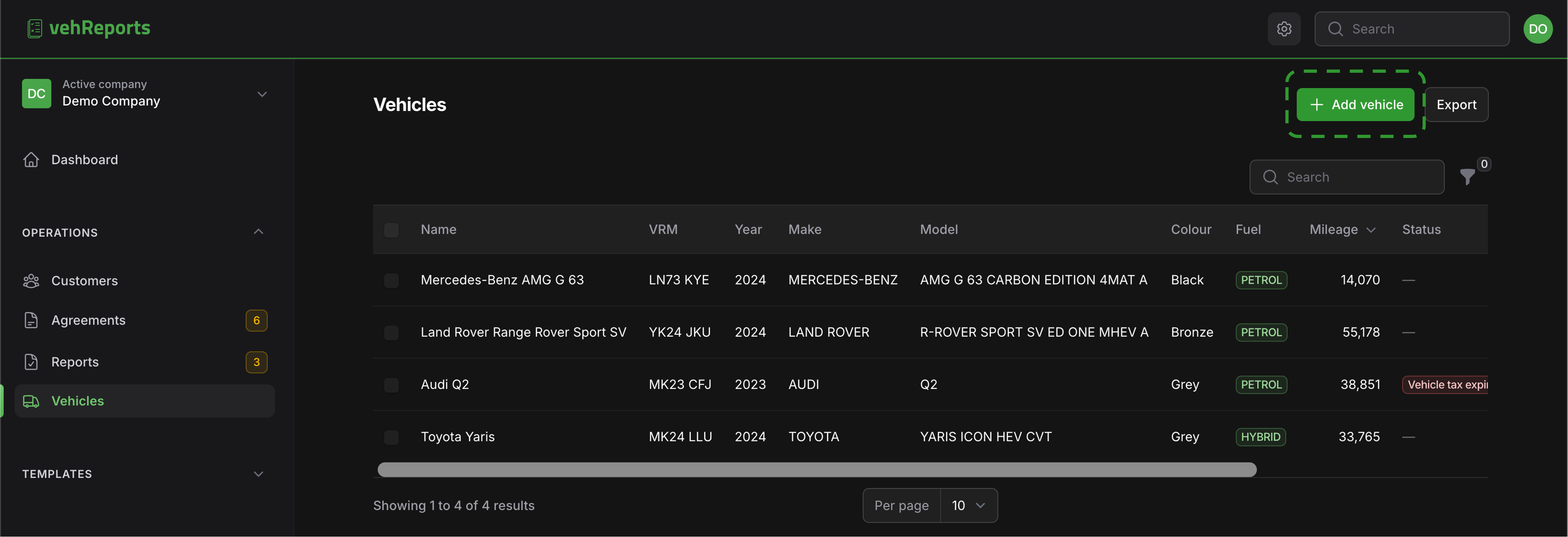 Tips:
Tips:
- A needs-attention flag appears automatically if the vehicle's tax or MOT is due soon or has expired, so you'll spot problems before you hand the keys over.
- You can record more on the vehicle now or later — a gallery (tag photos as exterior, interior or mechanical) and rental defaults (a daily rate, deposit and excess that pre-fill any future rental agreement). An auto-generated image stands in until you upload your own photos.
For the full detail on the vehicle record, gallery, rental defaults and MOT history, see Adding and managing a vehicle.
#What if the registration isn't found?
If the lookup can't find the vehicle (for example a brand-new plate, a personalised plate not yet registered, or an overseas vehicle), you can still add it and enter the details by hand. Nothing about the rest of the flow changes.
#Step 2 — (Optional) Add the customer
If you'll send the report to someone or hire the vehicle to them, add them under Customers now. You can store their name, contact details, company and VAT number, account number, date of birth and licence information — all of which pre-fills later paperwork like rental agreements. You can also do this mid-report, so don't let it hold you up. See Adding and managing customers.
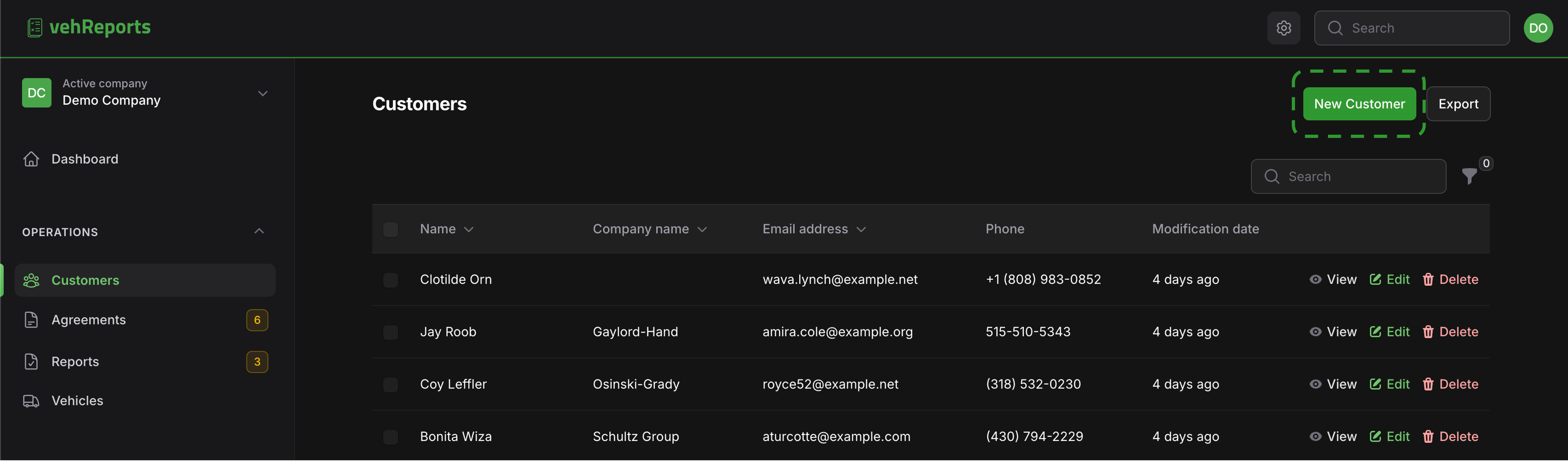
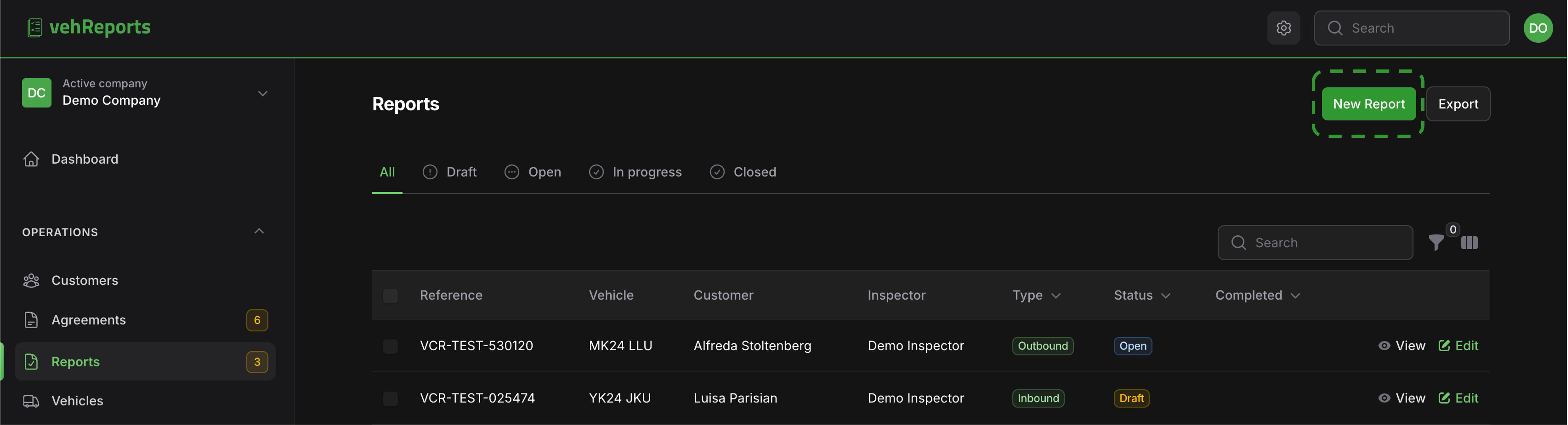
#Step 3 — Start a report
Open Reports and create a new inspection. You'll choose:
- the vehicle you just added;
- the inspection type — for example general, inbound or outbound. The type changes which sections and checks you're asked for and, on some inbound checks, whether a verdict appears at the end. See Inspection types explained;
- optionally the customer.
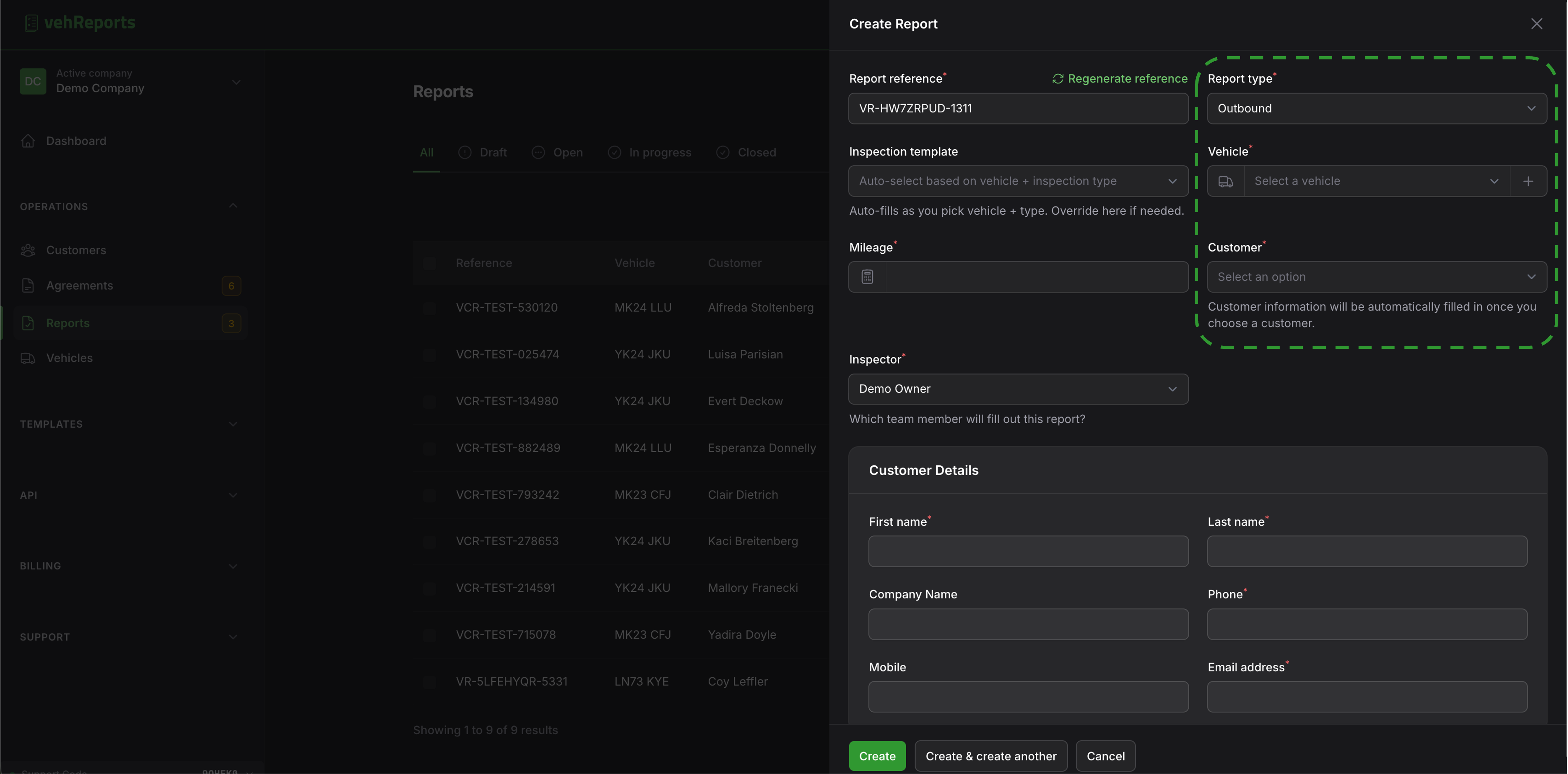 The report opens as a draft. No credit is used yet, so there's no pressure to finish in one sitting — you can save and come back. The fields you see are pulled from your inspection template, which is matched automatically to the vehicle type and inspection type you chose, so the report is already tailored before you type a thing. See How templates work — matching by vehicle and inspection type.
#Step 4 — Fill it in
Work through the tabs. The exact sections come from your template, but the common shape is:
#Vehicle details and mileage
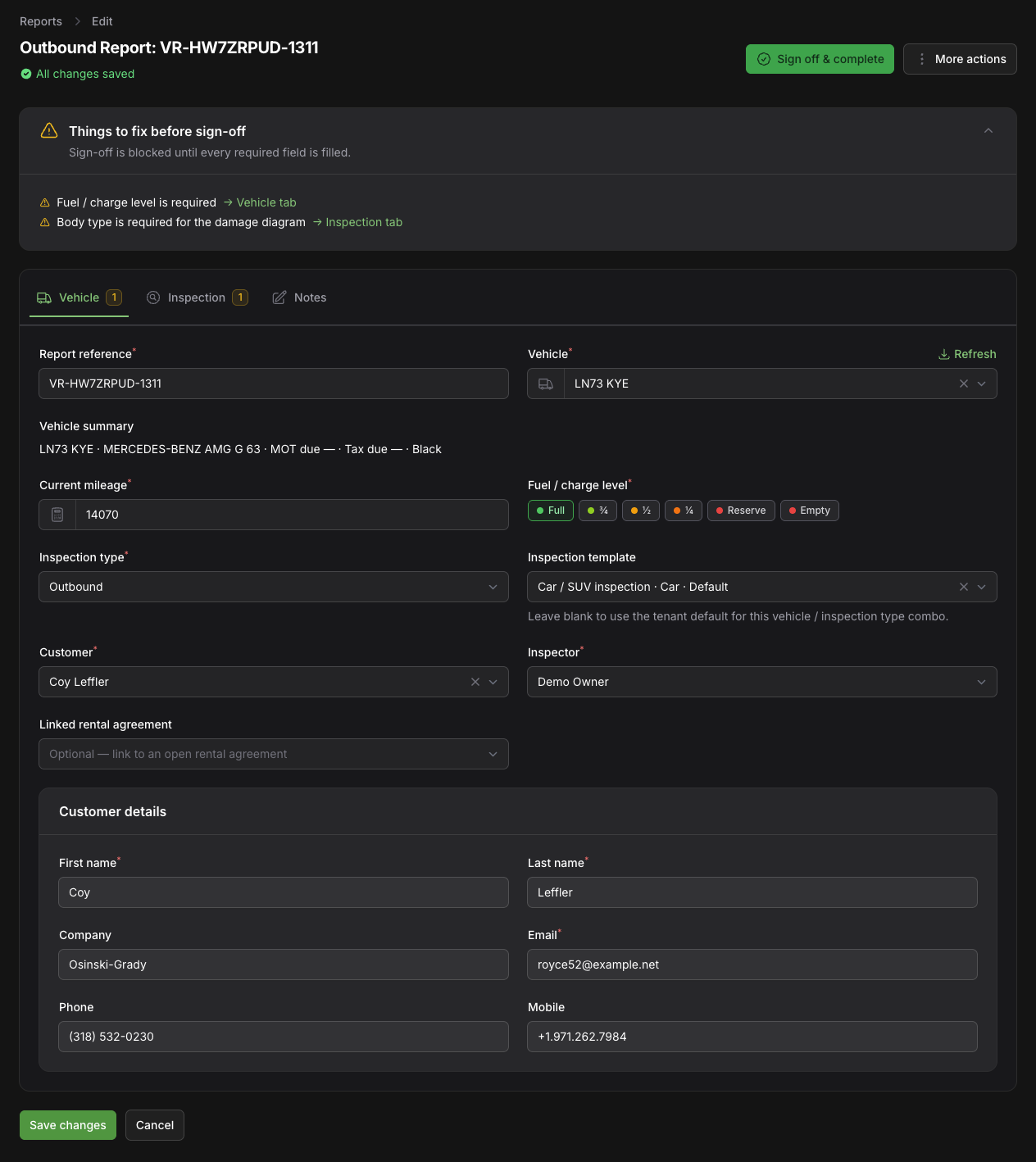
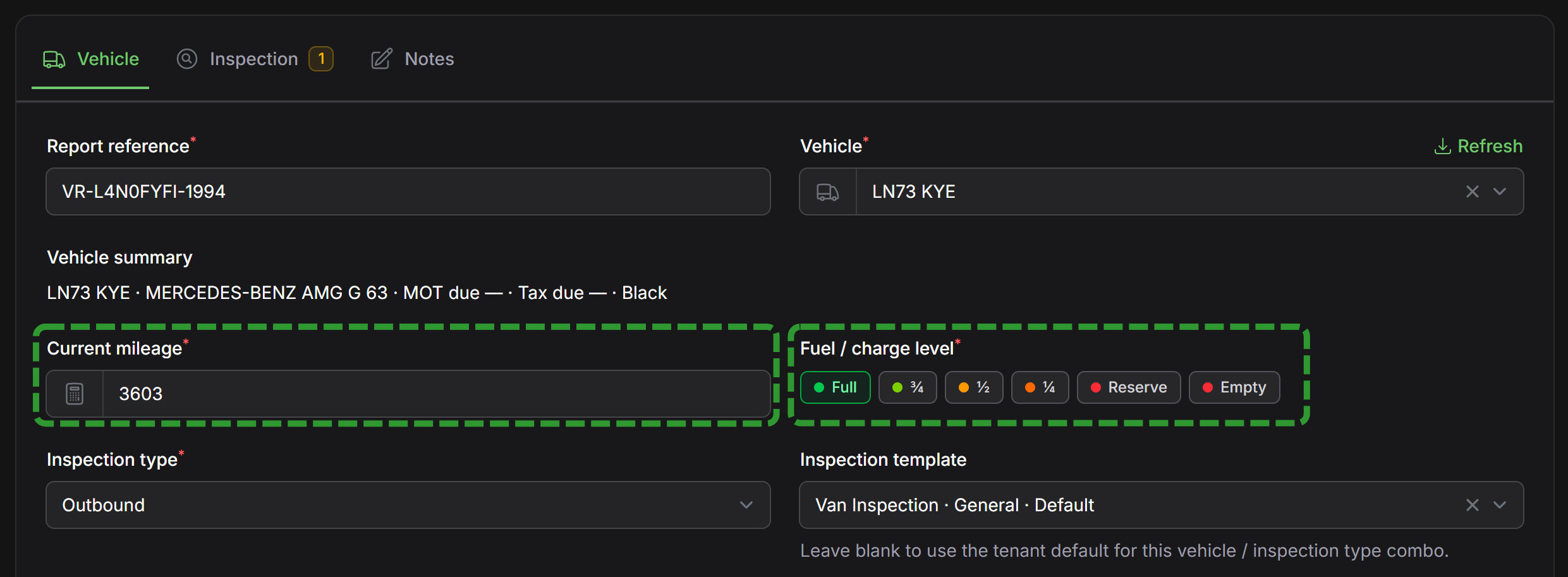
Confirm the make, model and other details (these come straight from the automatic lookup) and enter the current mileage. The latest MOT reading is pre-filled as a starting point — just update it to today's odometer.
#The walkaround — photos
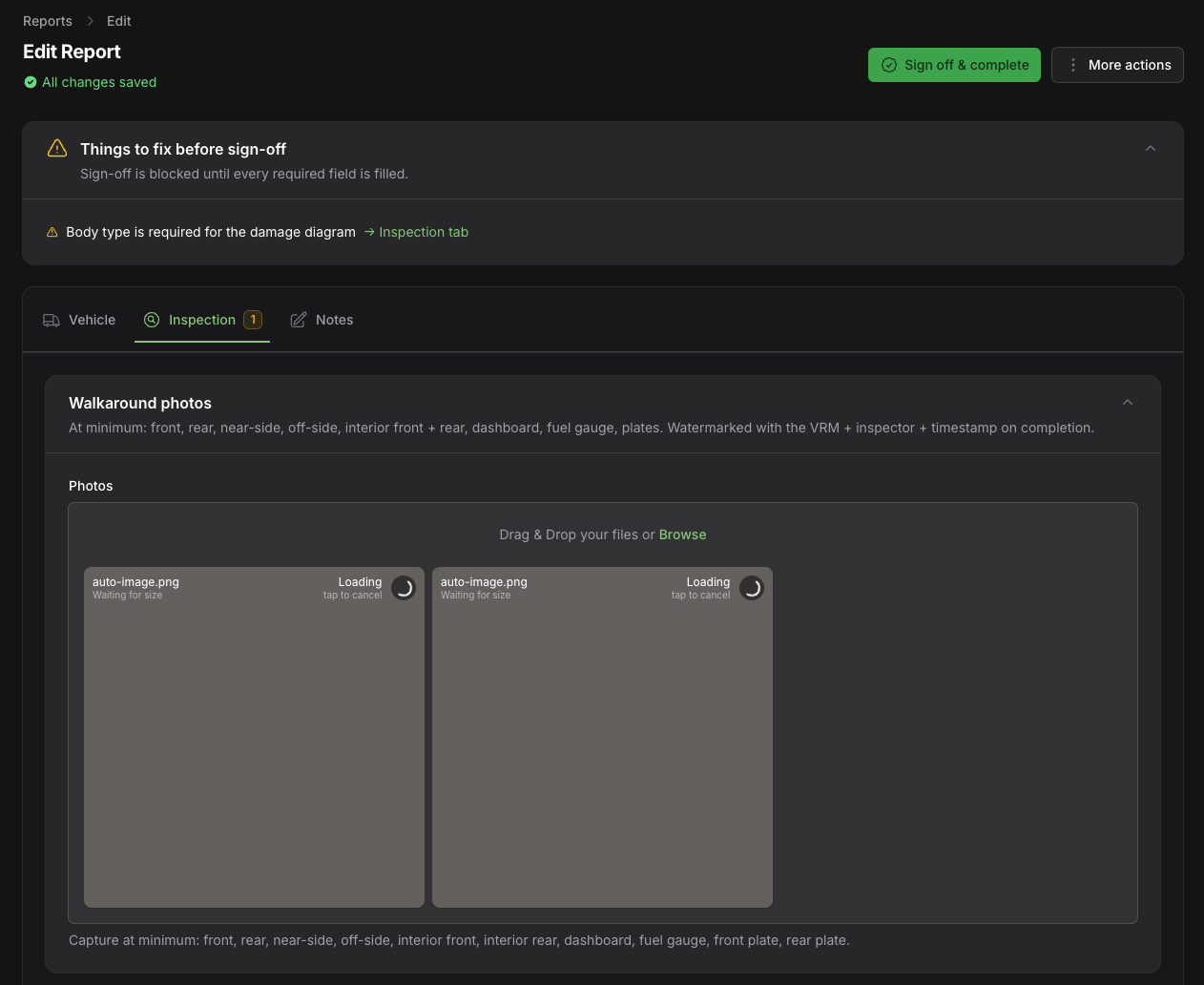
Capture the suggested angles: front, rear, both sides, interior, dashboard, fuel gauge and the number plates. You can reorder photos, and there's a built-in image editor for cropping and marking up. On completion, photos are watermarked with the registration, the inspector's name and a timestamp — so they stand up later as evidence. For more, see Creating and completing an inspection report.
#The walkaround — damage
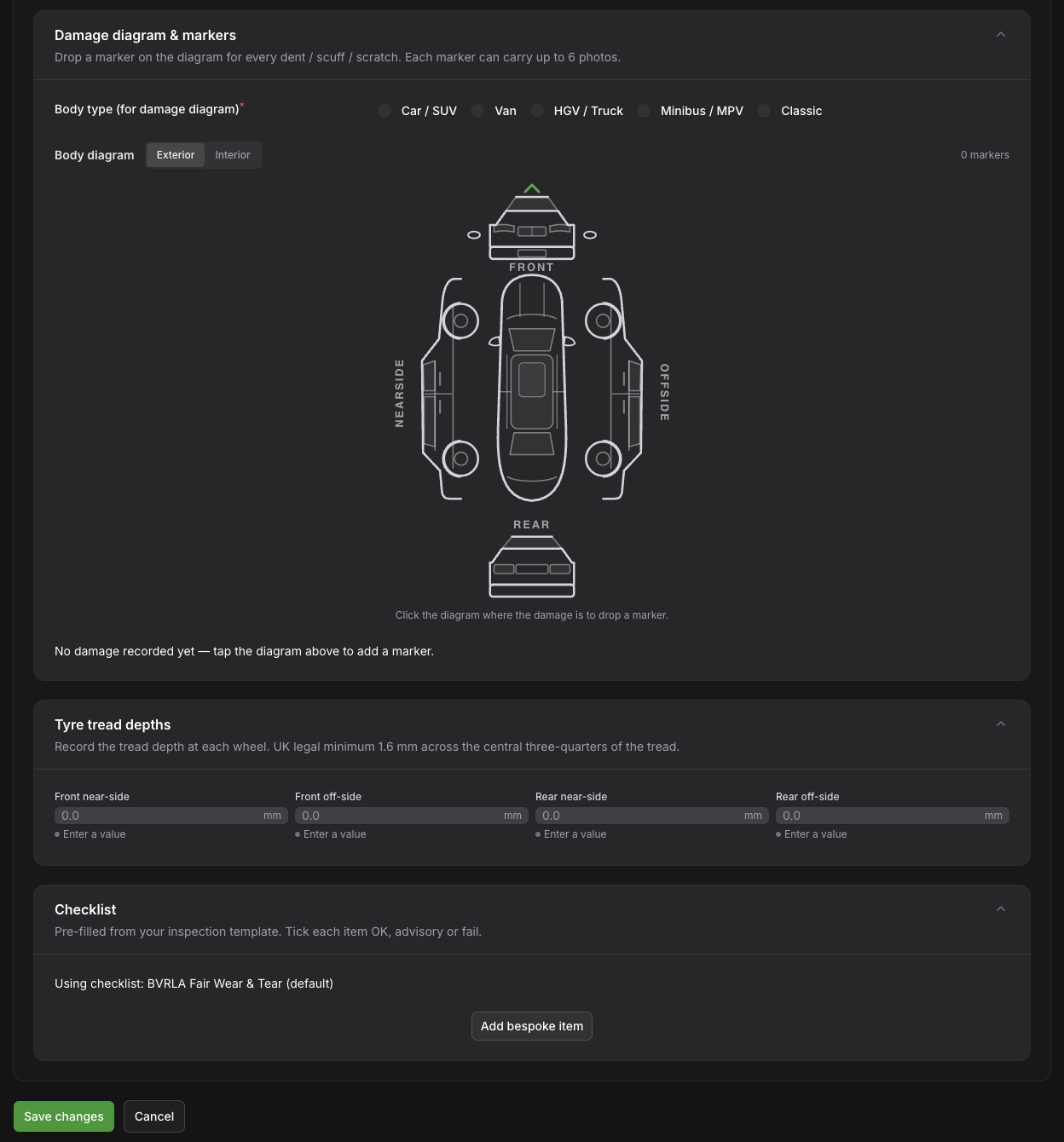
For anything you find, tap the body diagram that matches the vehicle (car/saloon, van, HGV, minibus or classic) to drop a marker. For each marker, record the area (bumper, door, wing, wheel, windscreen and so on), the severity, a short note, and up to six photos. The damage codes, severities and cost bands are set by your template, so they match how your business grades damage. See Marking damage on the diagram.
#Tyres, fuel and mileage
Record tread depth per wheel — readings are flagged at the 1.6mm legal limit and a 3.0mm advisory threshold — and the fuel or charge level. Mileage carries over from the Vehicle tab.

#The checklist
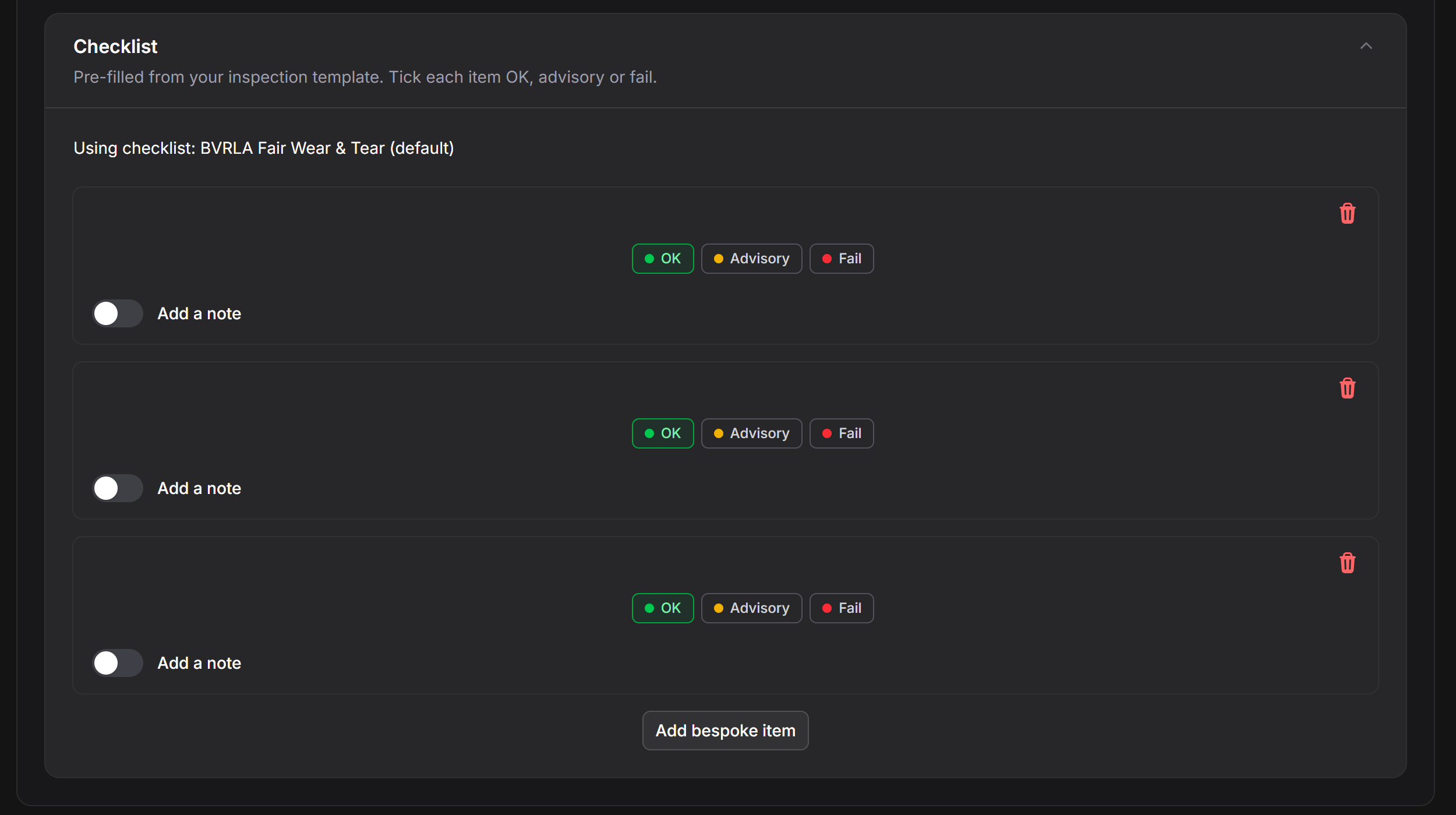
Work down the checklist marking each item pass / advisory / fail / not-applicable. It's pre-filled from your template, you can add per-item notes, and you can add one-off items for anything unusual on this particular vehicle. Some templates include class-specific checks (for example extra items for an HGV).
#Notes
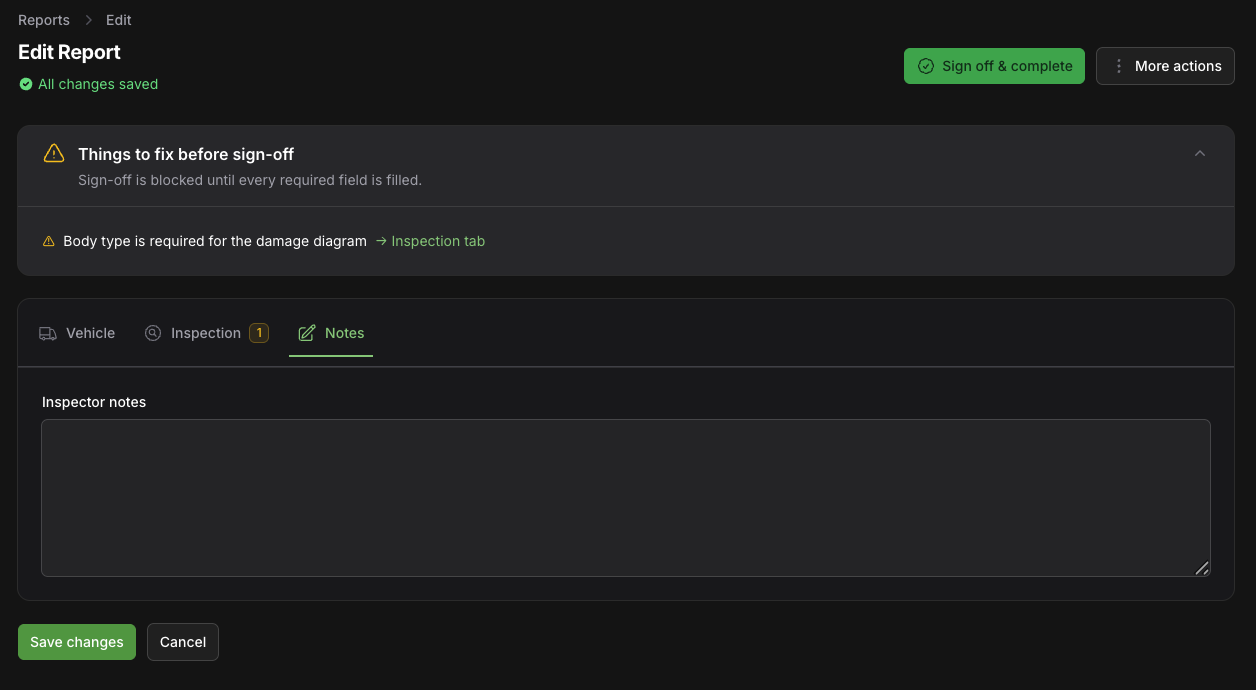
Anything else worth recording goes here.
#The "before sign-off" panel
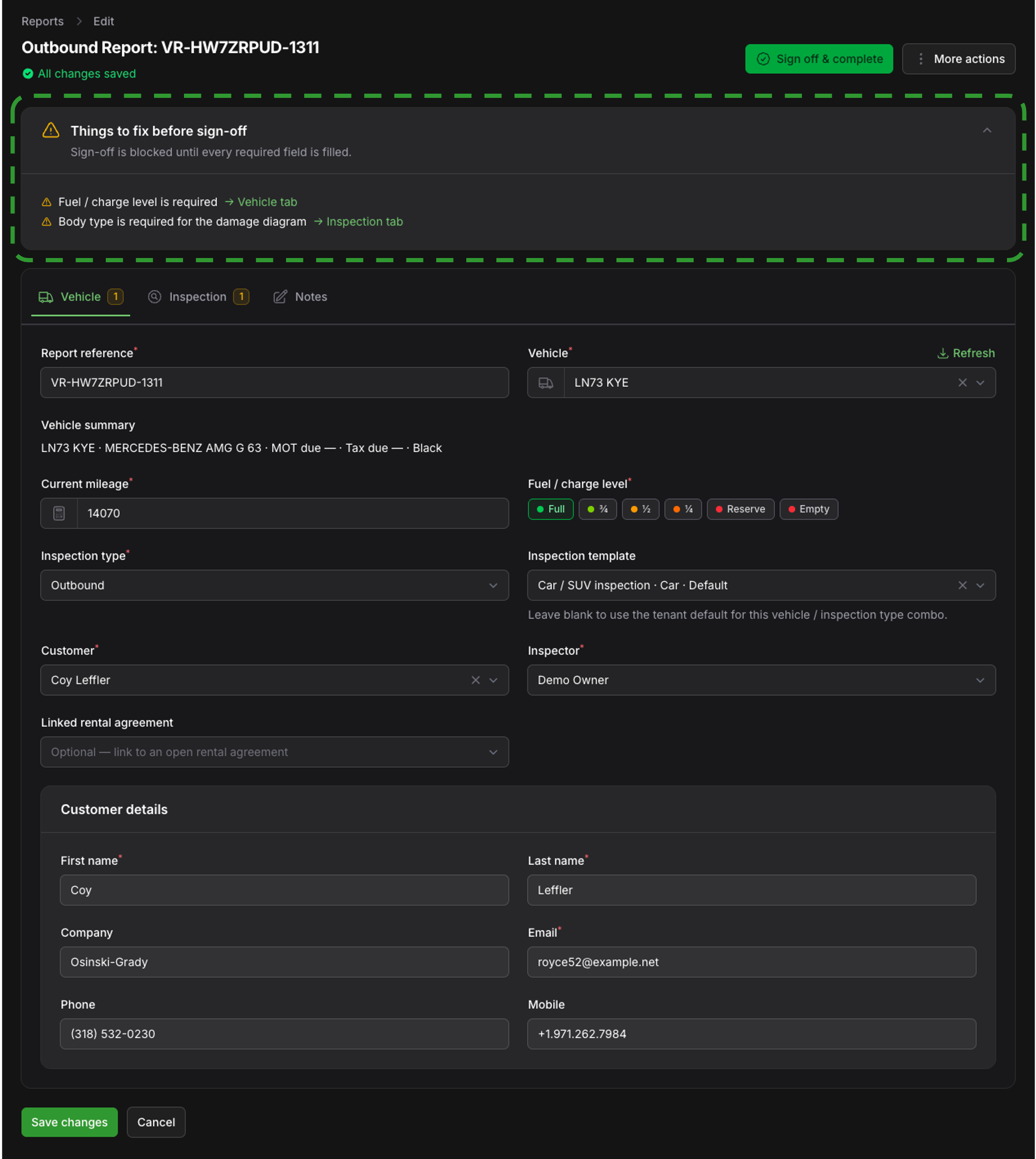
At the top of the report a "before sign-off" panel lists everything still outstanding — a required photo not yet taken, an unfinished checklist item, missing mileage. The tab badges show you exactly where the gaps are. You can't sign off until this panel is clear, which is what stops half-finished reports going out the door.
#Step 5 — Sign off
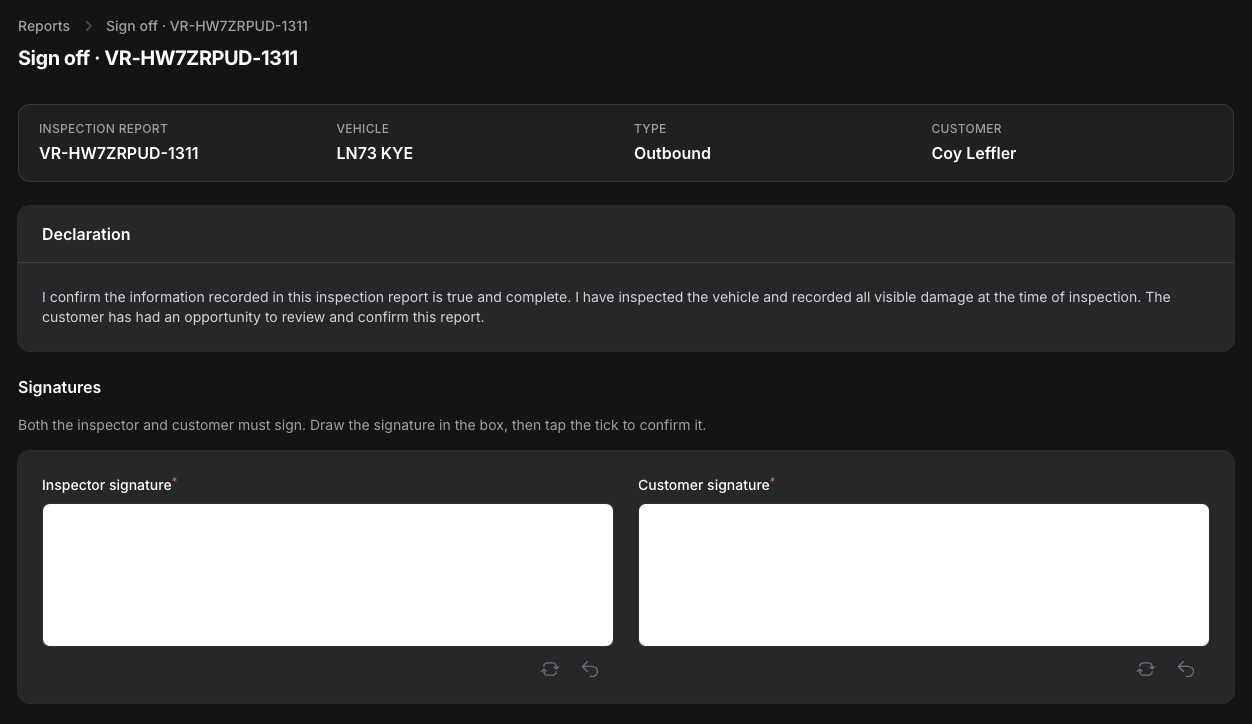
When the "before sign-off" panel is clear, you're ready. Both the inspector and the customer add their signatures and agree the declaration. In one step, vehReports then:
- debits one credit (about £1) — this is the only charge in the whole process;
- locks the report as a permanent, read-only record;
- generates the branded PDF;
- emails it to the customer automatically.
On an inbound check, the report may also show a verdict — for example "concerns" with a short rationale — when your template's verdict rules apply, such as new damage over a set threshold or a refuel being required.
For the full sign-off detail, including re-sending and sharing, see Signing off, sending and managing a report.
#What if I'm out of credits at sign-off?
You'll be prompted to top up, and your draft is saved exactly as it is — nothing is lost. Add credits and sign off when you're ready. Topping up takes a moment under Billing; see Credits, pricing, top-ups and subscriptions.
#What if I need to change something after signing off?
A signed report is locked permanently and can't be edited — that's what makes it a defensible record. If something needs correcting, create a new report for the vehicle instead. The original stays on file.
#What you've got
The finished report lives under Reports. You can preview it, download the branded PDF, re-send it by email or SMS, or share a signed-PDF link that stays valid for 30 days. Because it's locked, it stands as a defensible record of the vehicle's condition at that exact moment — useful for disputes over damage, fuel or mileage at the end of a hire.
To find a specific report later, you can search and filter by vehicle, customer, type, date and status — see Finding and filtering your reports.
#A quick recap
- Vehicles → add by registration (free; details pulled in automatically).
- Customers → optionally add who you're sending it to (free).
- Reports → start a new inspection, pick the vehicle and type (free draft, no credit yet).
- Work the tabs: mileage, photos, damage, tyres, fuel, checklist — until the "before sign-off" panel is clear (all free).
- Sign off → signatures + declaration → 1 credit, locked PDF, emailed to the customer.
#Where to go next
- Going deeper on the walkaround: marking damage and the full report build guide.
- Hiring the vehicle out? Start a rental agreement — and run a free driver licence check on the hirer first.
- Want the report to carry your brand on the PDF and emails? Set your logo, colour and sender details under company profile, settings and branding.
- Tailoring what the report asks for: building inspection templates and checklists.