Welcome to vehReports. This guide walks you through registering your company, what to have ready, and the handful of setup steps worth doing in your first session so your reports, rental agreements and licence checks all work the way you want from day one. Registration itself takes a couple of minutes, and almost everything can be refined later.
#What vehReports is for
vehReports is UK B2B software for businesses that inspect, hire or check their own (or managed) vehicles — fleets, rental and lease operators, dealers and workshops. You use it to build inspection reports, draw up rental agreements and run driver licence checks against your own records. It is not a consumer car-history lookup service. If you want a fuller picture of what's included before you set things up, see what vehReports does (and what it doesn't).
#What to have ready
Nothing is essential to get started — you can register with just your name and company name and fill in the rest afterwards. It's quicker, though, if you have a few things to hand, because they feed straight onto your invoices and the documents your customers receive:
- Your VAT number — if your business is VAT registered. This appears on the invoices vehReports issues you and can show on customer-facing documents.
- Your billing address — used on the invoices vehReports issues to you.
- Your company logo — worth adding early, as it appears on the reports, rental agreements and emails your customers receive.
- Your website and rough team size — optional, but quick to add during sign-up.
You do not need a payment card to register. New companies start with free welcome credits, so you can run real work straightaway without paying anything (more on that below).
#Creating your account
Registration runs in a few short steps. Take your time over the username — it's the one detail you can't change later.
- You — your display name and a username. The username forms part of your account's web address, so pick something recognisable and lasting; it's fixed once chosen.
- Your company — company name, contact email and phone, and your VAT number if you have one.
- Billing address — used on the invoices vehReports issues you.
Along the way you can also add your website, an idea of your team size, and your company logo. The logo is the one optional extra worth doing now rather than later, because it's the first thing your customers see on a report or agreement.
#A note on the username
Your username becomes part of your account's web address, which is why it can't be changed afterwards. Everything else — company name, VAT number, contact details, address, logo — you can edit at any time under your settings. If you're setting up on behalf of the business, choose a username that represents the company rather than an individual, so it still makes sense if staff change.
#What happens next
Your company is created with a batch of free welcome credits (around 10), so you can run real inspections, rental agreements and licence checks immediately without paying. You'll land on your dashboard, ready to start. For an orientation, see a tour of your dashboard.
#What actually uses a credit
This is the most common worry, so it's worth being clear early on. Only two actions ever cost a credit, at roughly £1 each:
- Signing off an inspection report.
- Signing a rental agreement.
Everything else is free and unlimited: driver licence checks, DVLA lookups, MOT history, adding and editing vehicles, customers, templates and team members, and building or previewing as many drafts as you like. You only spend a credit at the moment you finalise. Even if you run out of credits, you can still build drafts, run checks and add records — only the final sign-off is blocked until you top up, and your draft is saved while you do. For the full picture, see understanding credits — what's paid and what's free.
#Sensible first steps
Once you're in, a few minutes of setup pays off and makes everything afterwards smoother. None of these steps costs a credit.
#1. Brand your customer documents
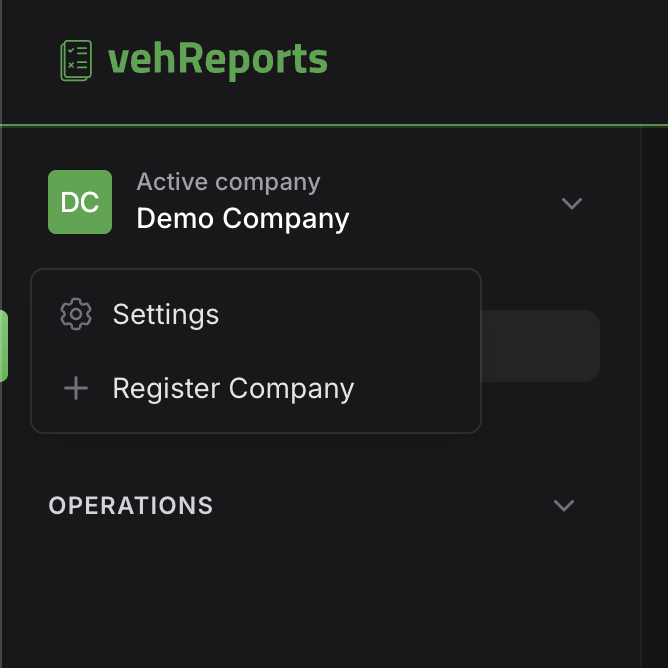
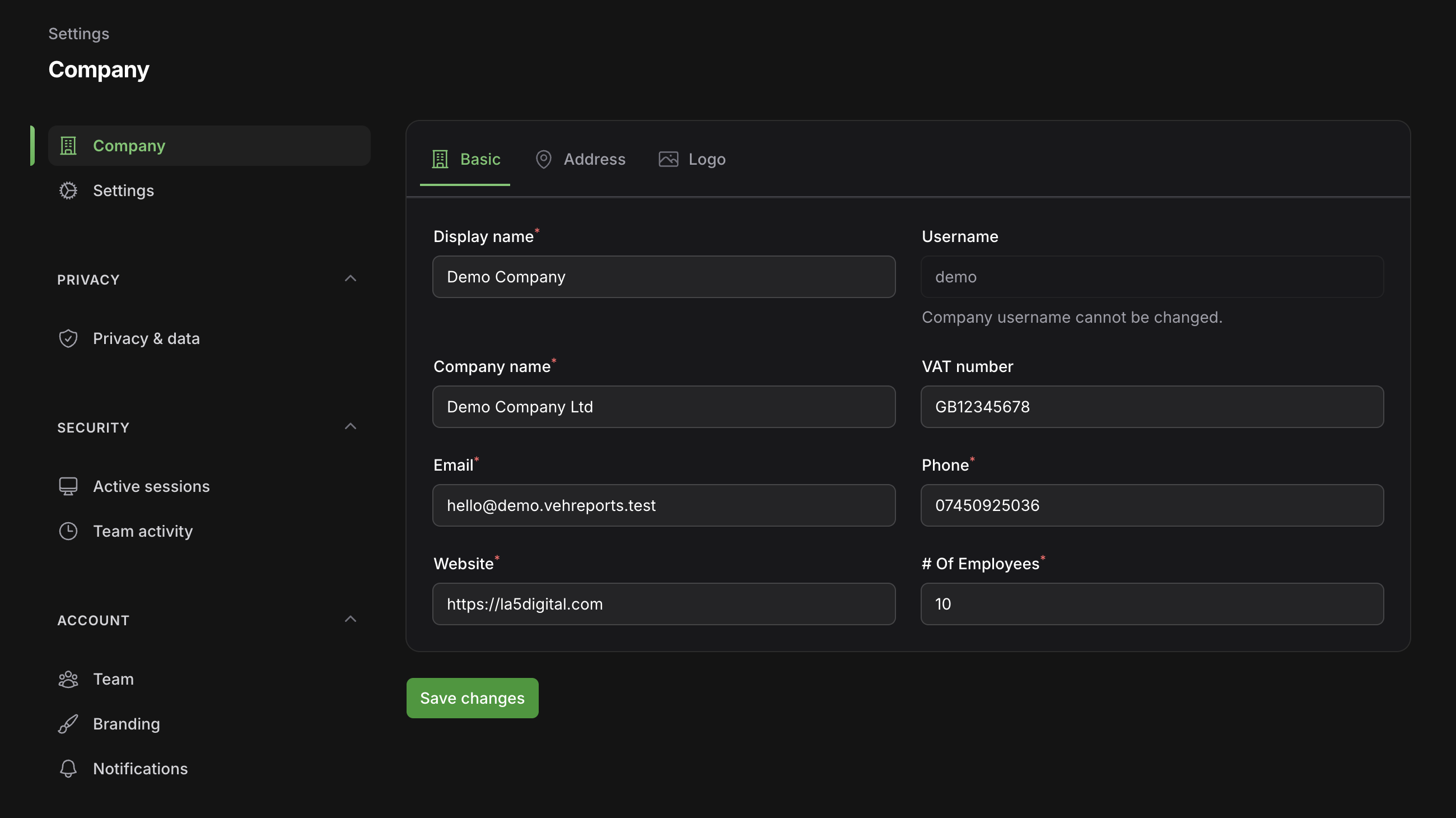
Set your logo, primary colour, sender name, reply-to address and PDF footer so the reports and emails your customers receive look like they come from you. Branding applies only to customer-facing PDFs and emails — it doesn't change how the app looks to you and your team. You'll find this under your company profile and branding settings: see company profile, settings and branding.
#2. Check your company settings
Before your first job, look over your company settings so the app matches how you work:
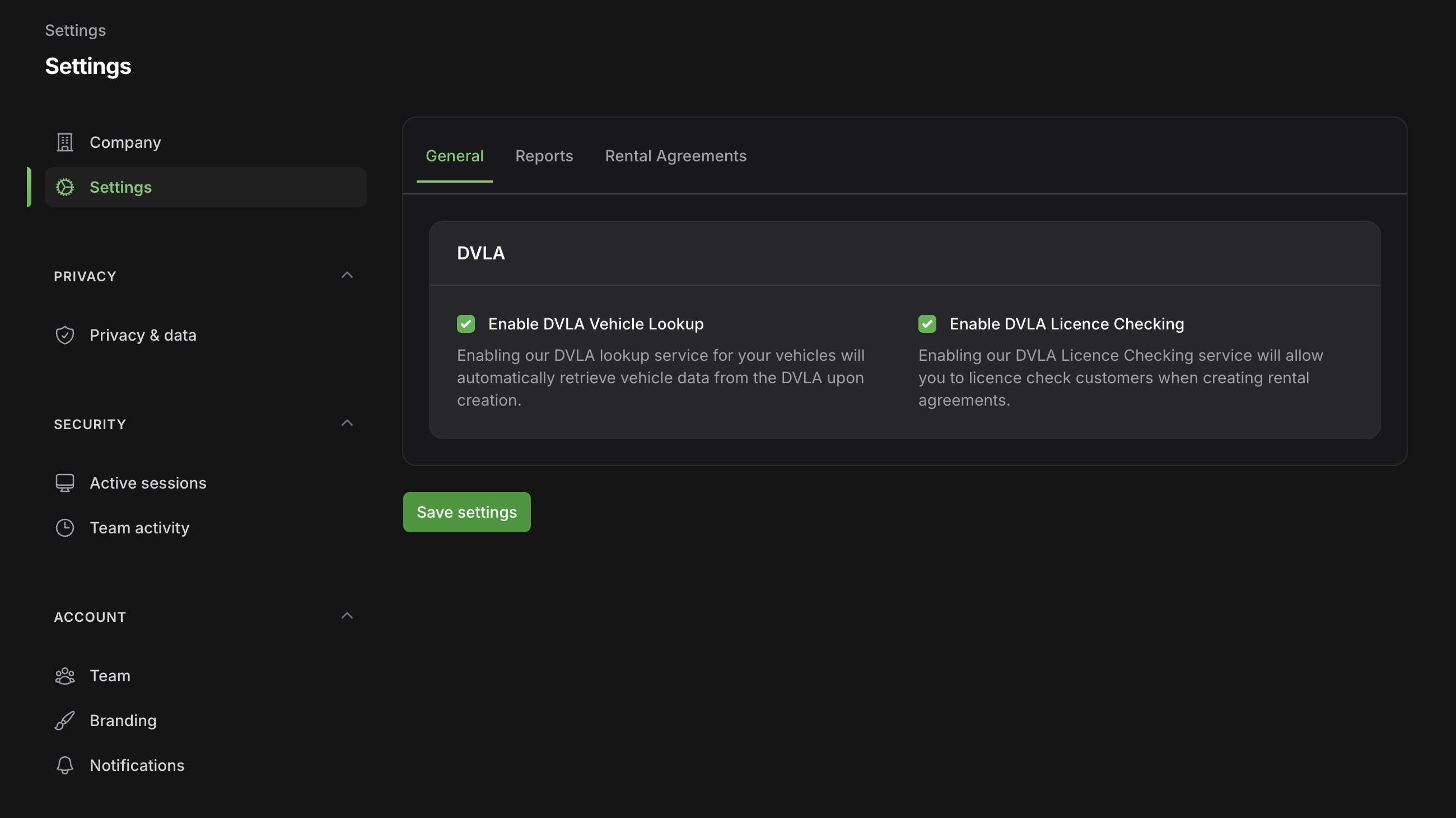
- Reference prefixes — set the prefixes used on report and agreement reference numbers.
- Which report types are offered — turn the inspection types you use on or off (general, inspection, inbound, outbound, mid-term, pickup, dropoff, pre-purchase, post-wash). See inspection types explained.
- Carry-over pre-fill — choose how much detail a new report inherits from a previous one (off, condition only, condition and damage, or everything).
- Hirer licence requirement — decide whether a hirer licence check is required on rental agreements.
- DVLA lookup toggles — control the automatic DVLA and MOT data pulls.
These all live under company profile, settings and branding.
#3. Review your templates
vehReports uses templates to decide what each report and agreement asks for. They're matched automatically by vehicle type and inspection type, falling back to your default — see how templates work. Check the starting templates ask for what you need, and adjust them before you start producing documents in volume:
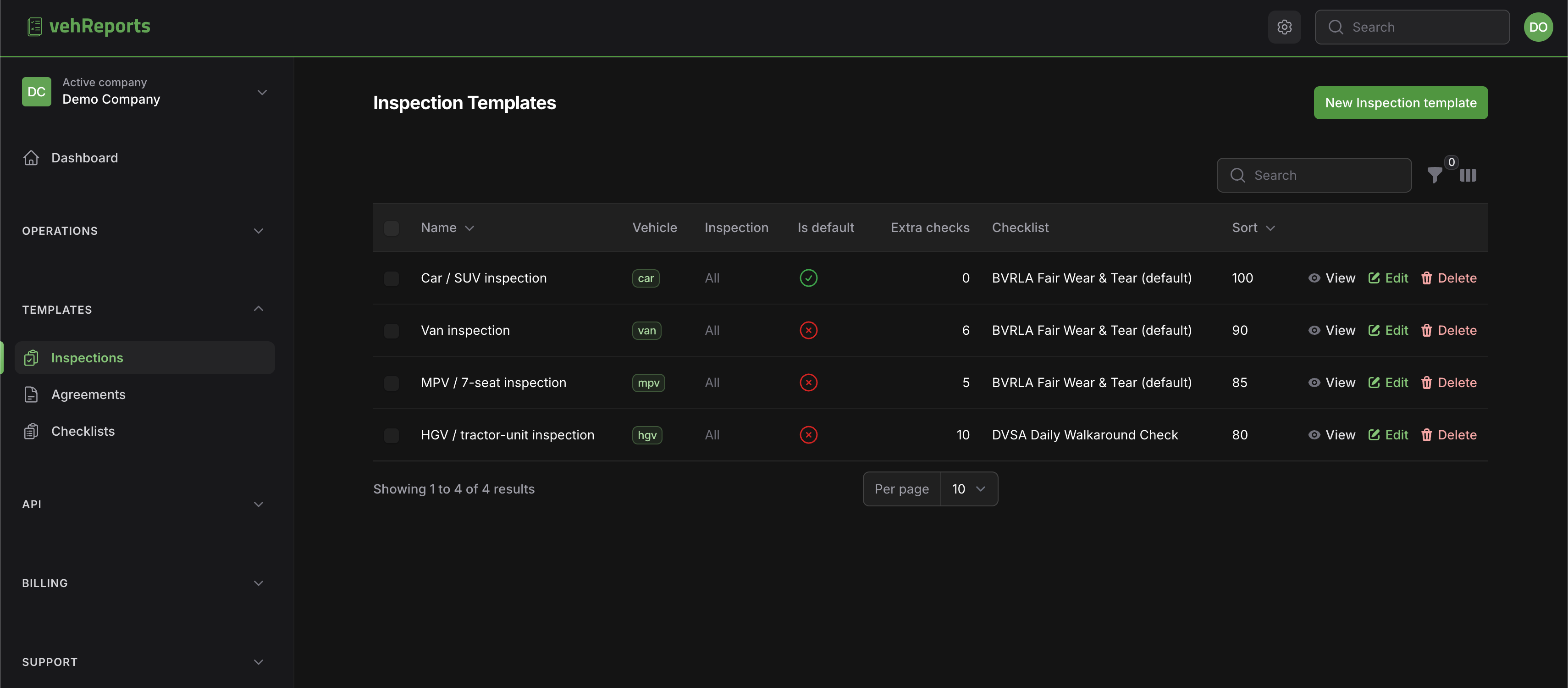
- Inspection templates control the sections shown on the PDF, photo and signature rules, declarations, verdict rules, the default checklist and the damage taxonomy. See building inspection templates and checklists.
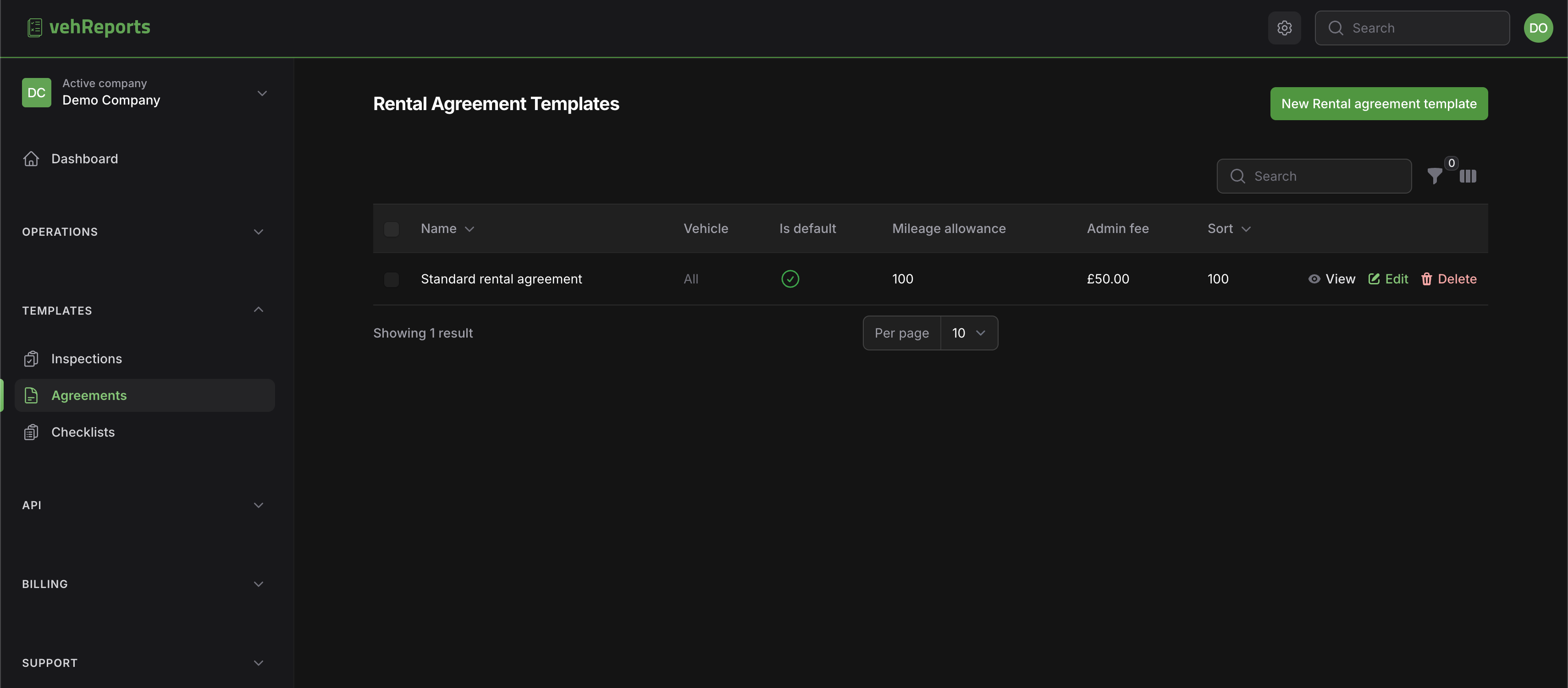
- Rental agreement templates control the built-in and custom sections, clause text, policy defaults, signature rules, the equipment checklist, an attached T&Cs PDF and the "require a return inspection" toggle. See building rental agreement templates.
#4. Add your first vehicle
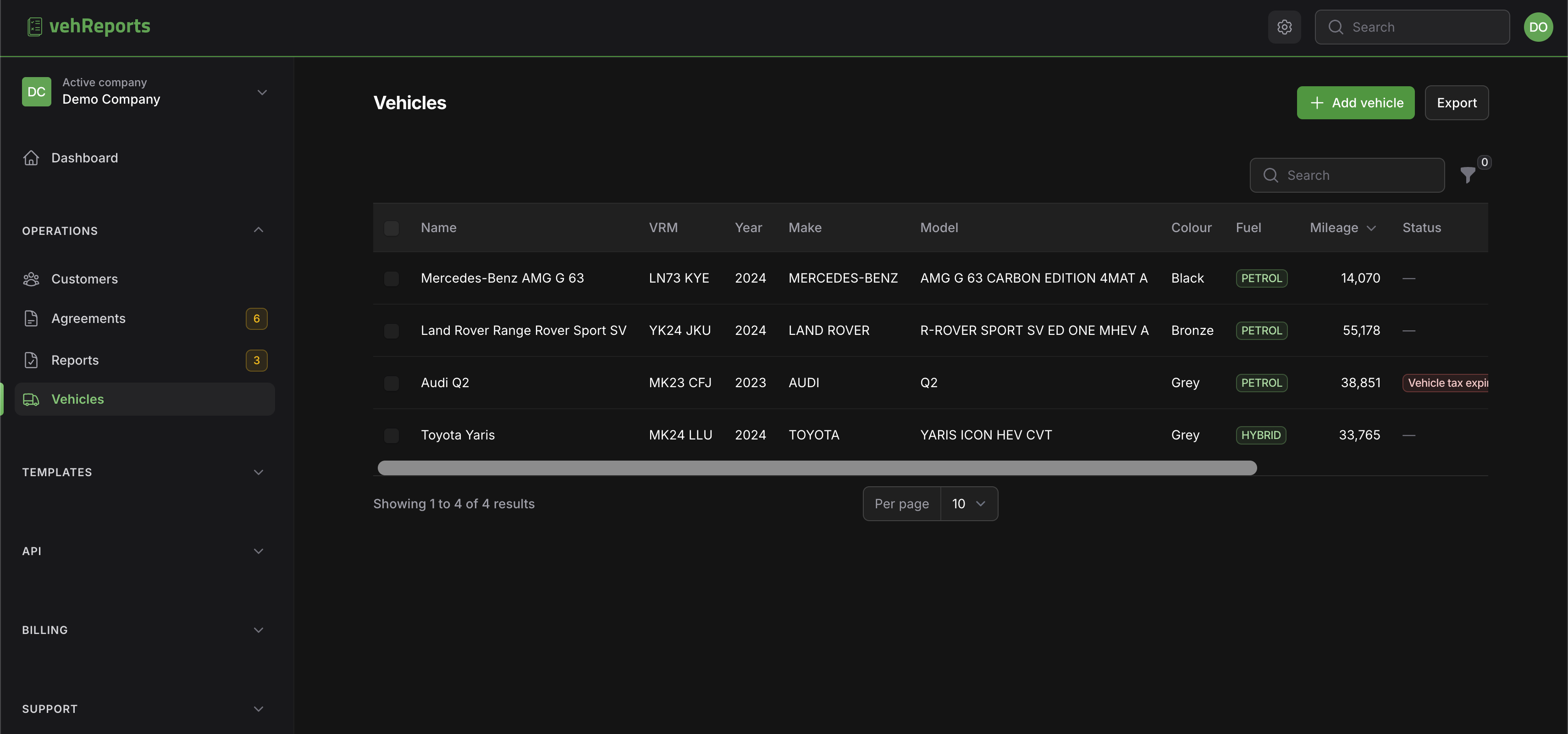
Add a vehicle by its registration and vehReports automatically pulls the DVLA and MOT data — make, model, colour, fuel, tax and MOT status, plus the latest MOT mileage. This is free. See adding and managing a vehicle. When you're ready, your first inspection in five minutes walks you through a complete job.
#5. Invite your team and set roles
Bring in colleagues and give each person the right level of access. Invite by email and choose a role:
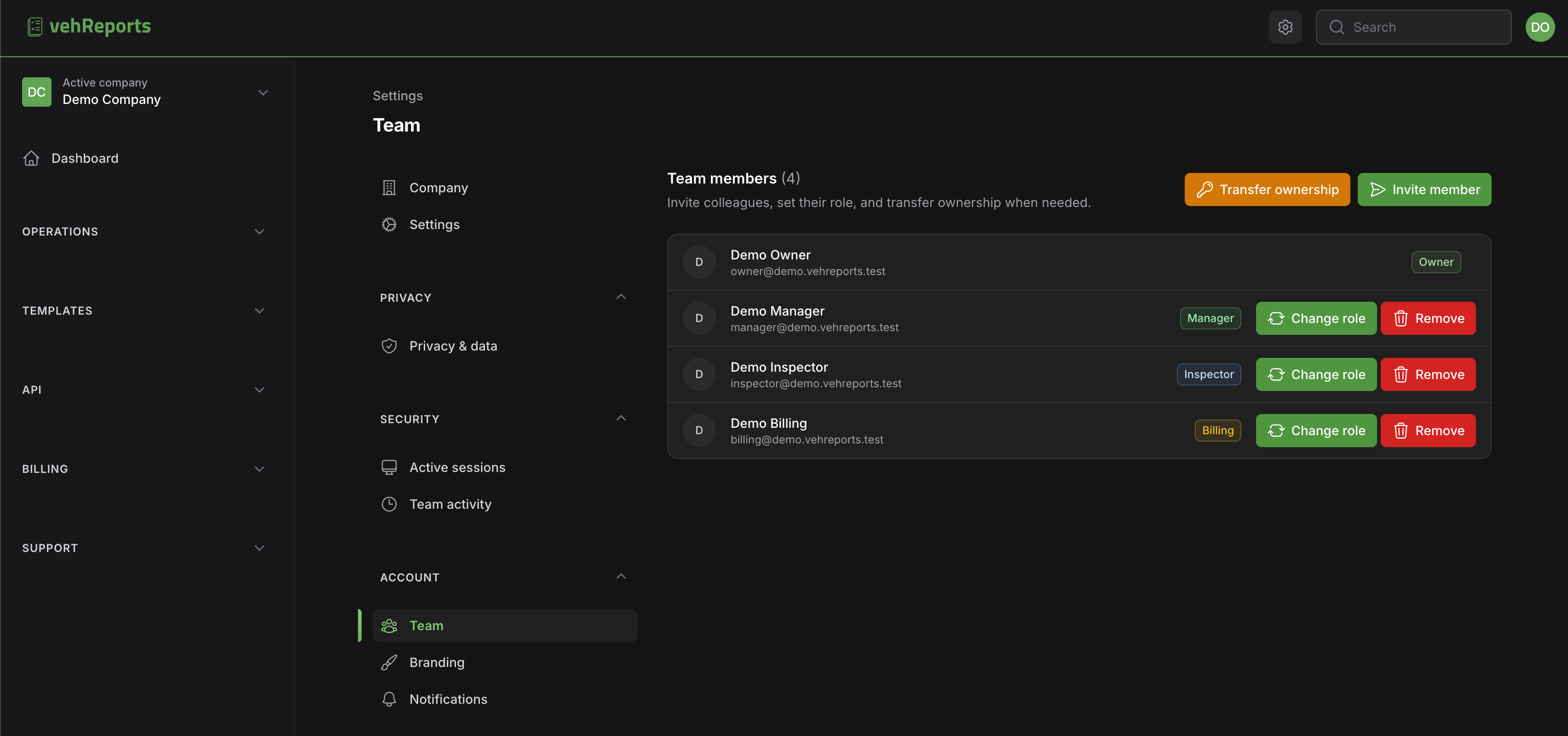
- Owner — full access, including billing and the ability to transfer ownership.
- Manager — day-to-day running; can view credits but not manage billing.
- Inspector — inspections, agreements and licence checks; no billing access.
- Billing — manage credits, orders and invoices; can view reports and agreements.
You can resend or revoke invites, change someone's role, remove a member, or transfer ownership later (the previous owner becomes a Manager). See roles explained and managing your team.
#6. Secure your account
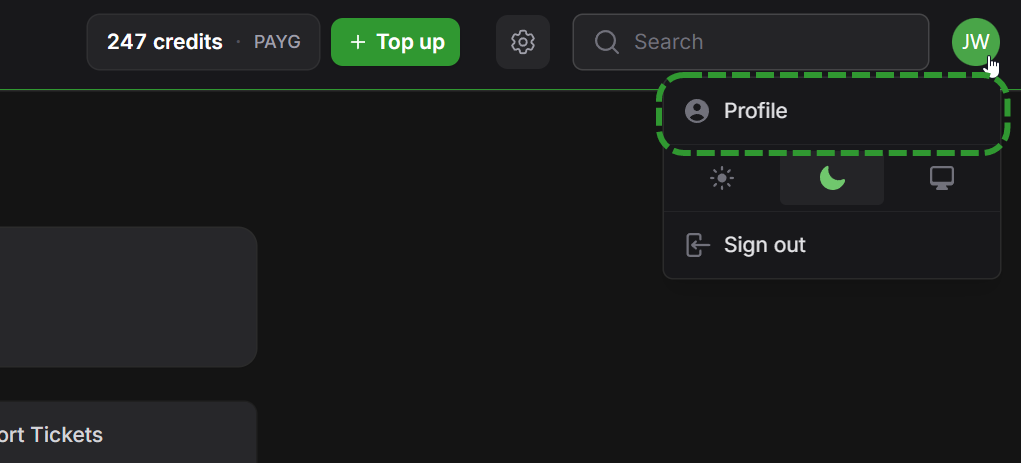
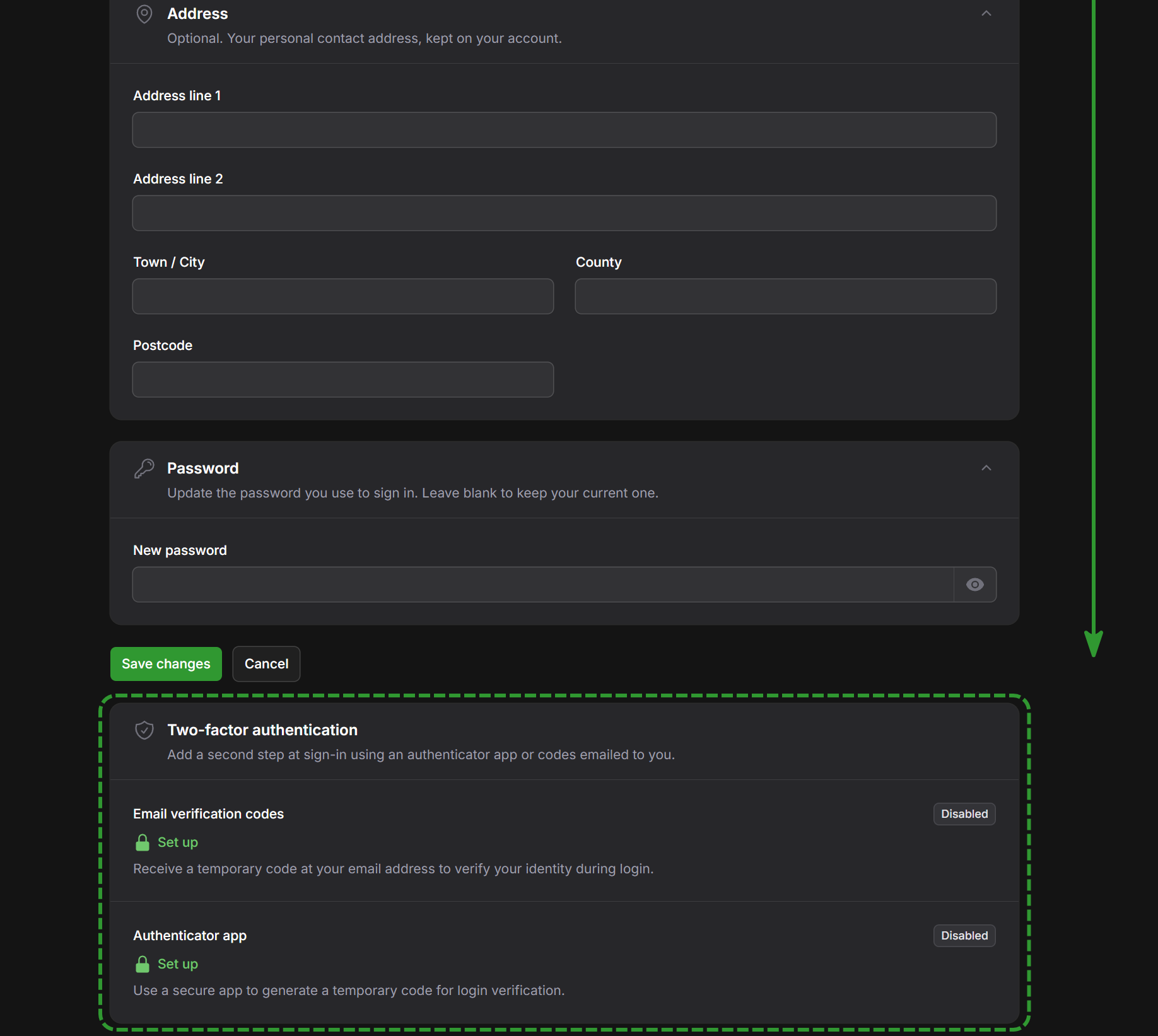
Turn on two-factor authentication for an extra layer of protection — either via an authenticator app or emailed codes, with recovery codes provided. You can also review and manage active sessions, including signing out everywhere else. See your profile and security.
#Changing details later
Almost everything can be changed afterwards under your settings — company name, VAT number, contact details, billing address, logo, branding and team — with one exception: your username is fixed once chosen, because it forms part of your account's web address. To edit your other company details, see company profile, settings and branding.
#Common questions
Do I need a payment card to register? No. You start with free welcome credits and can run real inspections, agreements and licence checks without paying. You only add a card when you choose to top up — see credits, pricing, top-ups and subscriptions.
I picked the wrong username — can I change it? No. The username is fixed once chosen because it's part of your account's web address. If it's genuinely unworkable, raise a ticket and the team will advise — see getting help with support tickets.
I'm VAT registered but didn't add my VAT number during sign-up. That's fine — add it any time under your company profile and it will appear on future invoices and customer documents. See company profile, settings and branding.
Will my logo and colours change how the app looks to my staff? No. Branding applies only to the PDFs and emails your customers receive. Your team's in-app view is unchanged.
Can I run more than one company from one login? Yes — if you belong to more than one company, you can move between them with the company switcher. See switching between companies. Separate depots or franchises that roll up to a parent account are set up by the vehReports team rather than self-serve; contact us if that applies to you.
How do I get help if I'm stuck during setup? Raise a support ticket from inside the app — choose a department, subject and priority, add a message and any attachments, and you can reply and track its status. See getting help with support tickets.