Your dashboard is the home screen you land on the moment you sign in. It's built to do two things well: get you to the next job in as few taps as possible, and surface anything that needs your attention. This tour walks through every part of it — your credit balance, the quick-action shortcuts, recent activity, the main menu, and how to switch between companies — so you know exactly what each panel is telling you and where it takes you next.
#What the dashboard is for
Think of the dashboard as your starting line, not a destination. You won't spend long here — most of the time you'll glance at it, see your credit balance and recent work, and tap straight into a new inspection, agreement or record. Everything you see belongs to the company you're currently working in (more on that below), and reflects your role, so what's on your screen may differ slightly from a colleague's. That's expected and correct.
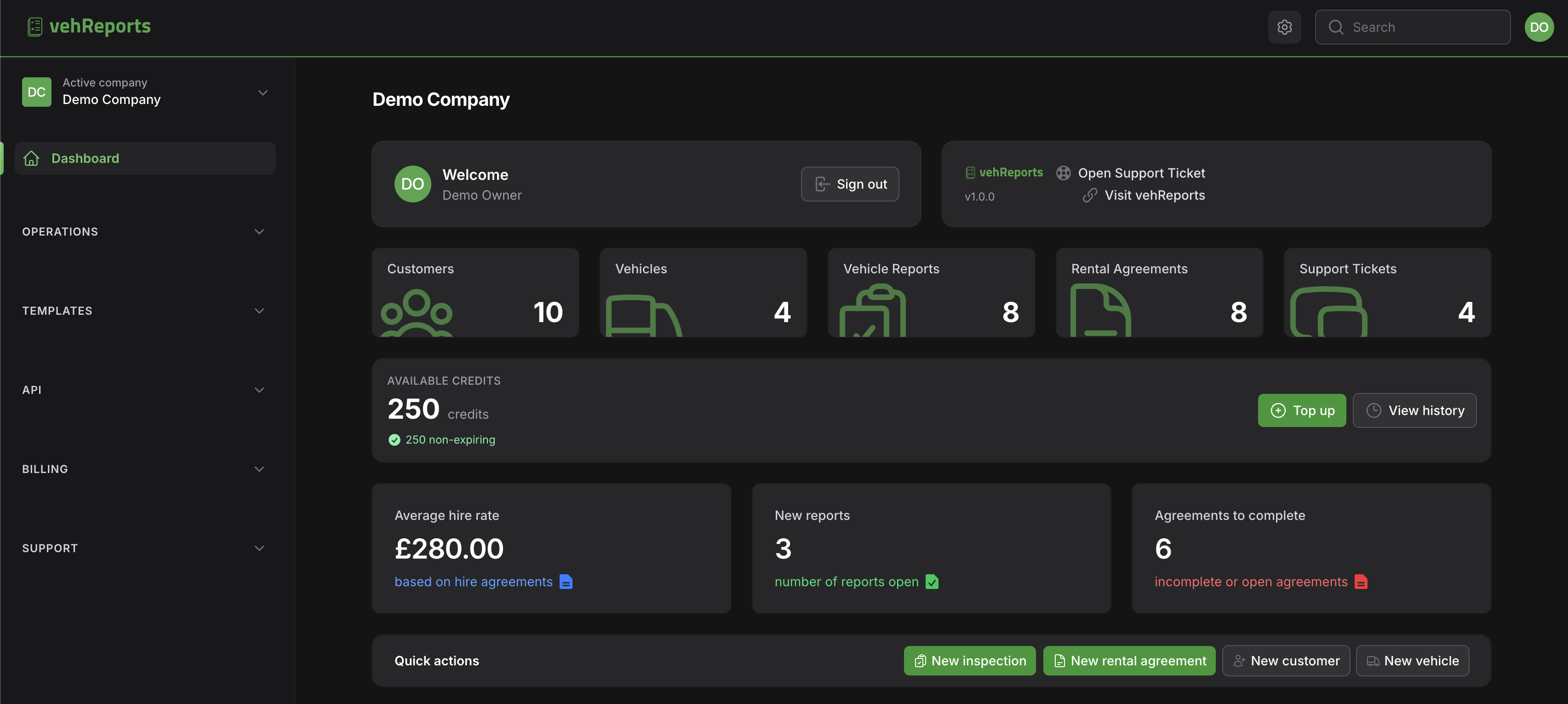
There's nothing to set up to use the dashboard — it's ready the moment your company account exists. If you've just signed up, it's worth running through setting up your company account first so your branding, templates and team are in place; the dashboard then becomes far more useful because the shortcuts lead to a fully configured workspace.
#Credit balance
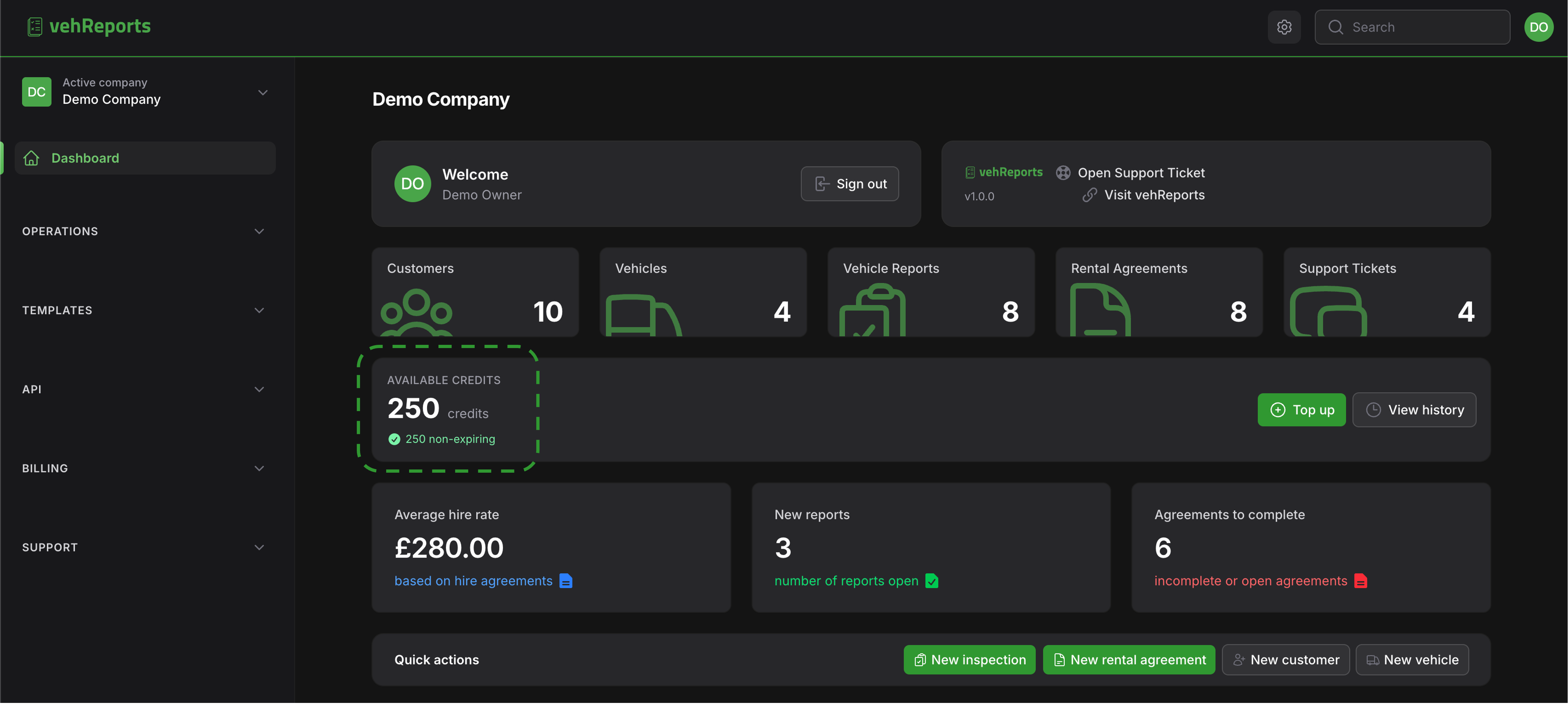
Front and centre is your credit balance — the number of signed documents you can produce before you need to top up. This is the figure most operators check first, so it's given pride of place.
The single most important thing to understand is what actually moves this number. Only two actions ever cost a credit:
- Signing off an inspection report — 1 credit.
- Signing a rental agreement — 1 credit.
That's it. Each costs roughly £1. Everything else is free and unlimited, and never touches your balance:
- Running driver licence checks
- DVLA and MOT lookups when you add or refresh a vehicle
- Adding and editing vehicles, customers, templates and team members
- Building, previewing and saving drafts of inspections and agreements
Because of that, your credit balance only ever ticks down when you finish something — when you sign off a report or sign an agreement. Drafting all day costs nothing. New companies start with a small batch of free welcome credits (around 10) so you can try the full flow end to end before spending anything. If you want the full breakdown of what's paid versus free, see understanding credits.
#Topping up from here
If your balance is running low, the dashboard lets you jump straight to topping up without digging through the menu. Top-up packs are priced from £1 per credit with a discount as the pack grows (Starter 50 at £1.00, Standard 250 at 97.5p, Pro 500 at 95p, Volume 1000 at 90p), and top-up credits stay valid for 12 months. If you'd rather have credits arrive automatically each month, a subscription includes monthly credits that roll over while you stay subscribed.
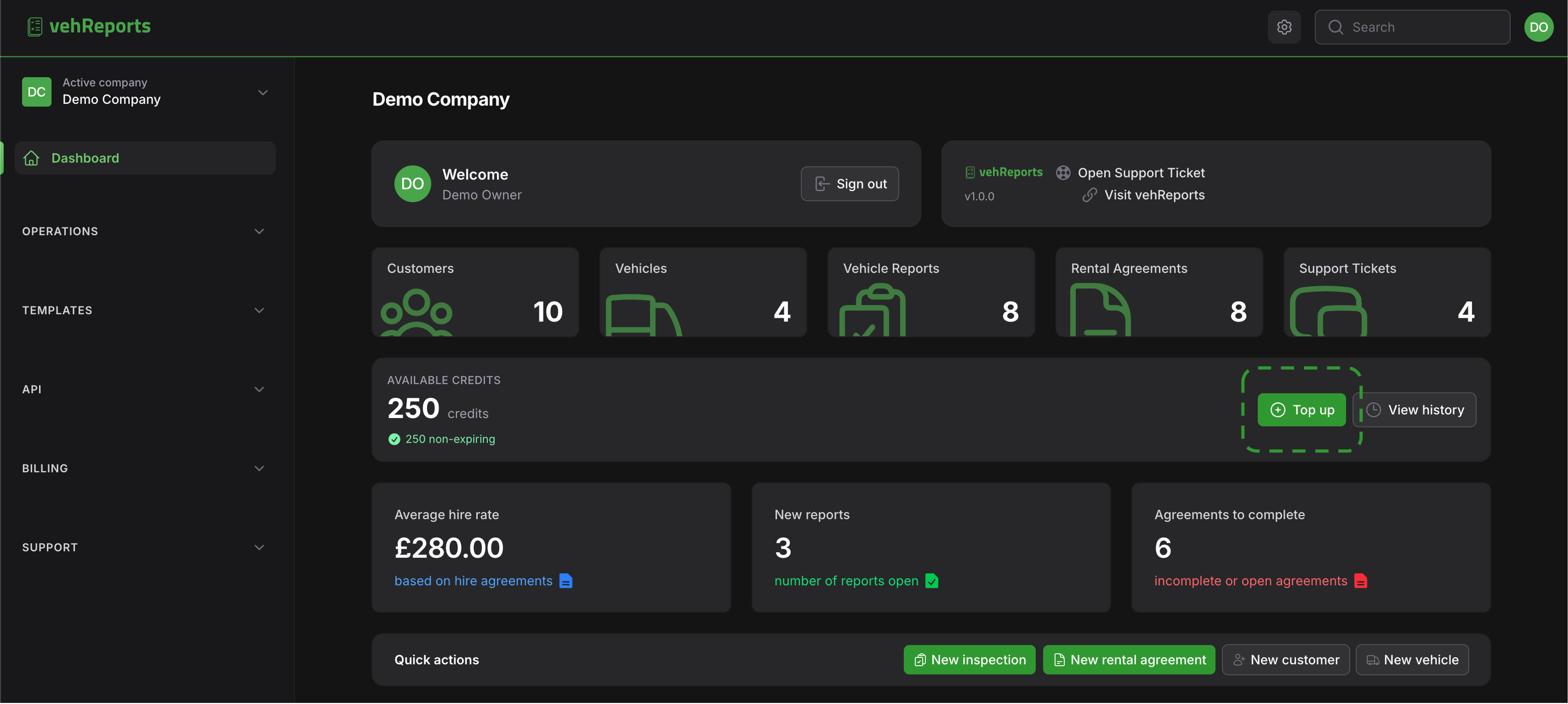
What if I run out of credits? Nothing grinds to a halt. You can still build inspection drafts, draft agreements, run licence checks, add vehicles and customers — all the free work continues. The only thing that's blocked is the final sign-off. When you reach that step with an empty balance, your draft is saved exactly as it is and you're prompted to top up; once you do, you sign off and carry on. You won't lose any work.
Note on who sees the balance. Credit and billing figures are visible to the Owner and the Billing role, and Managers can view the balance too (though they can't manage billing). An Inspector focused purely on fieldwork may see a slightly different home screen. See roles explained for exactly what each role can see and do.
#Quick actions
Shortcut buttons let you start the common jobs in a single tap, rather than hunting through the menu. These are the fastest way to begin whatever's in front of you:
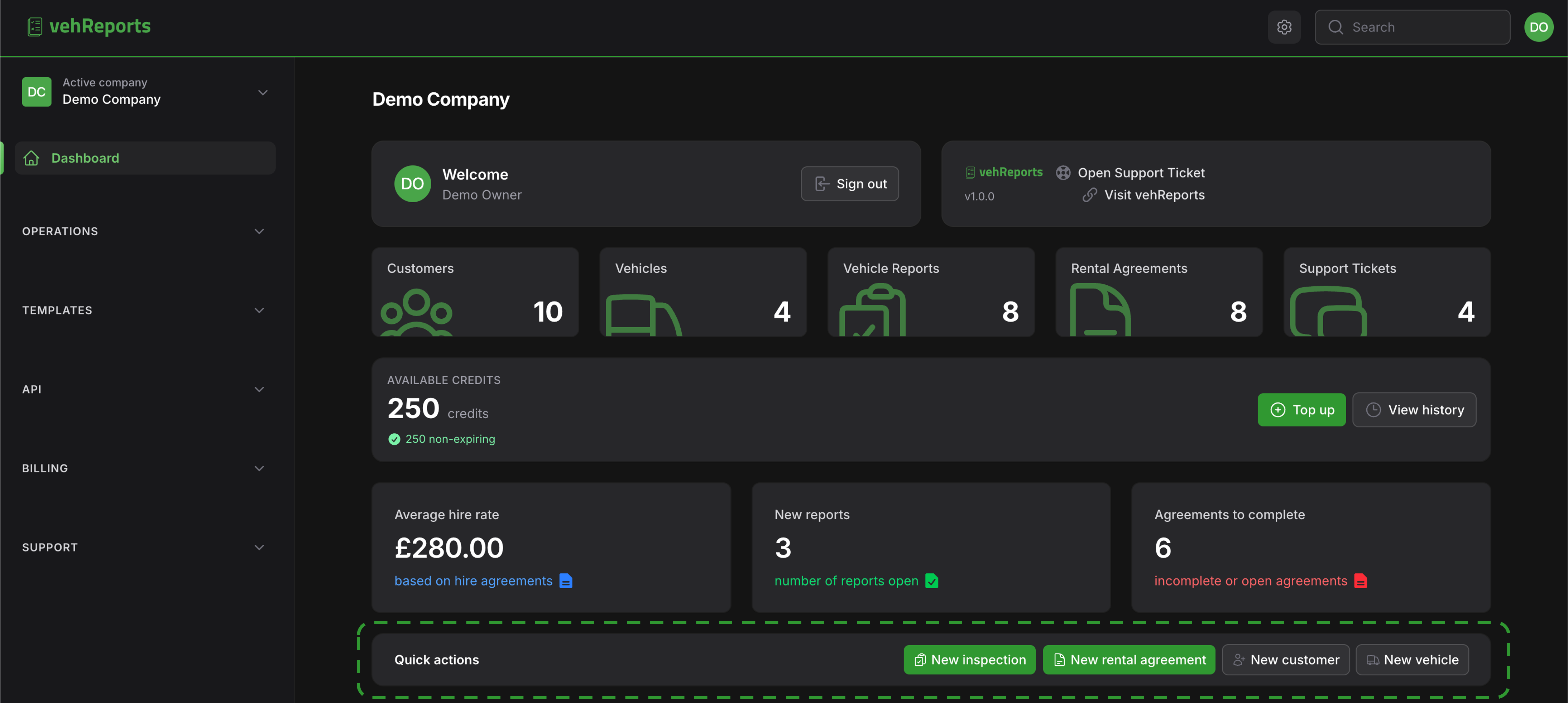
- New inspection — opens a fresh inspection report. Pick the vehicle and inspection type and the right template loads automatically.
- New rental agreement — starts a rental agreement, pre-filling the vehicle's rental defaults and the customer's details where they're on file.
- New customer — adds a customer record you can reuse across future jobs.
- New vehicle — adds a vehicle by registration; the DVLA and MOT details (make, model, colour, fuel, tax and MOT status, plus the latest MOT mileage) are pulled in automatically and free of charge.
Remember none of these starting actions costs a credit. Beginning an inspection or an agreement is free — you only spend a credit at the very end, when you sign off the report or sign the agreement. So feel free to start things from here without worrying about the meter.
#Recent reports and activity
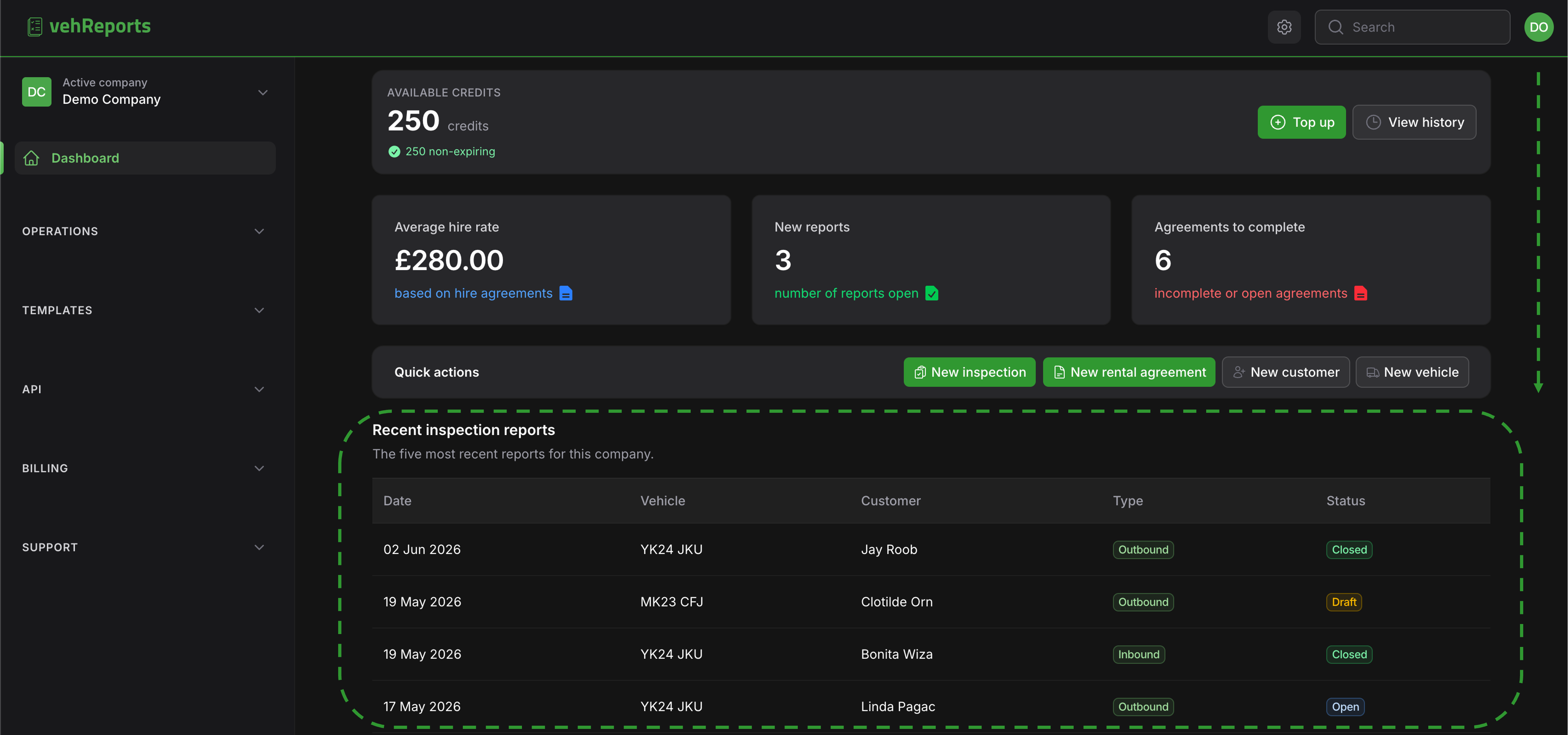
Below the shortcuts you'll see your most recent reports. This is your "pick up where I left off" panel: tap a draft to carry on completing it, or re-open a finished report to view it, re-send it or share a link. (Once a report is signed off it's locked and read-only — you can view and re-send it but not edit it. If something needs changing after sign-off, you create a fresh report. See signing off, sending and managing a report.)
Alongside that is a summary of recent activity across your account — a short feed of who did what: created, updated, signed off, closed or sent. It's a quick pulse on what your team has been doing. For the full picture — with filters by person, action, source and date, and a before/after breakdown on each entry — open the team activity log.
A note on notifications. vehReports keeps you informed by email and SMS only — there's no in-app inbox or bell to check. The recent-activity feed is a convenience summary, not a notifications centre. You choose which emails and texts you receive under your notification settings.
#The main menu
The left-hand menu groups everything by area so you can find any tool quickly. The exact items you see depend on your role, but the structure is:
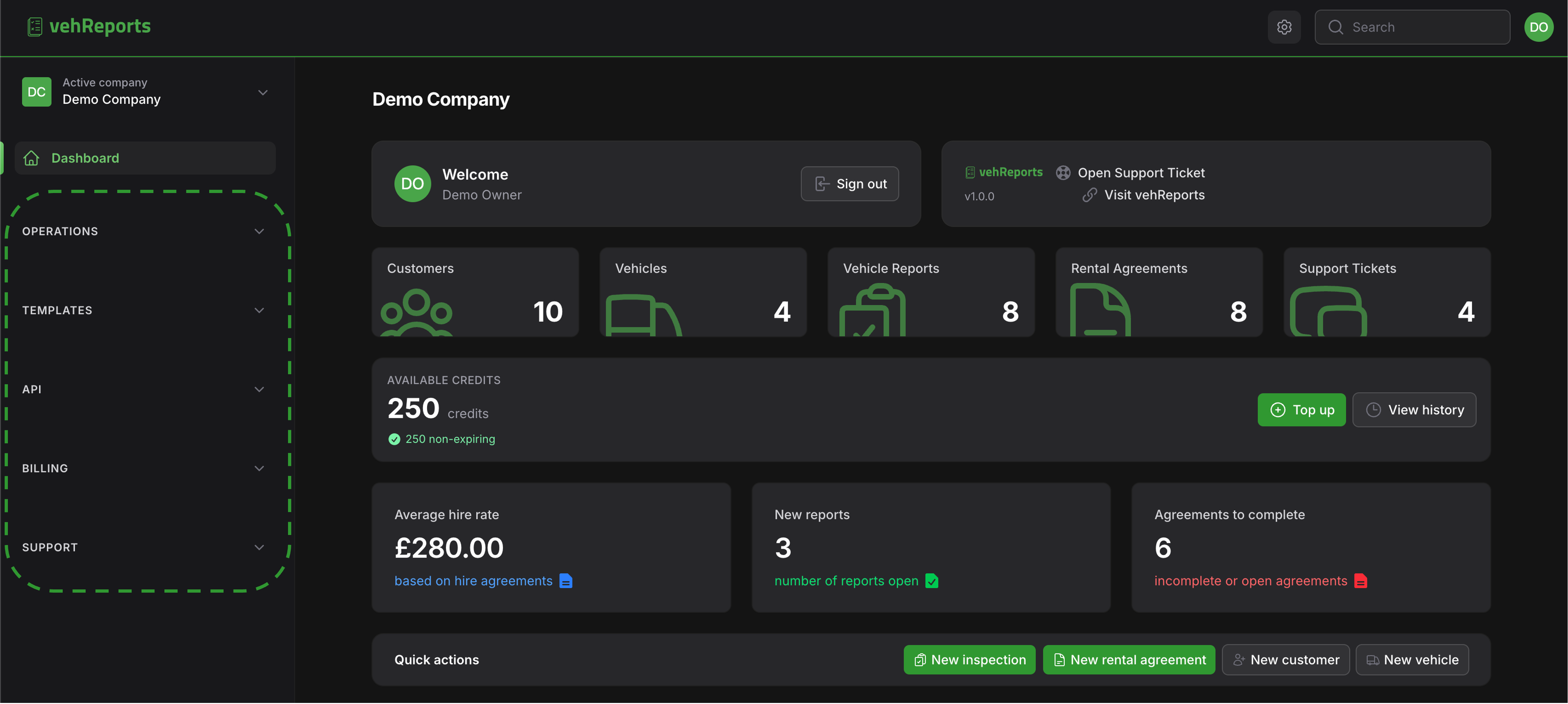
- Operations — your day-to-day work: reports, rental agreements, vehicles and customers. This is where you'll spend most of your time. Driver licence checks live inside a customer record or an agreement rather than as a separate menu item — see running a licence check.
- Templates — the inspection and rental agreement templates that shape your documents. Inspection templates control which sections appear, the checklist, photo and signature rules, declarations and the damage taxonomy. They're matched automatically by vehicle and inspection type — see how templates match.
- Billing — credits, top-ups, subscriptions and invoices, plus your saved cards and company billing details. Managed by the Owner and the Billing role.
- API — keys, in-app documentation and webhooks for connecting vehReports to your own systems. See using the API. As in the app, only creating an inspection or agreement via the API uses a credit; everything else, including licence checks, is free.
- Support — raise and track support tickets, see product updates, and reach this Help Centre.
You'll also find your account and company settings reachable from the menu — your personal profile and security (including two-factor authentication) and your company profile, settings and branding.
#What if a menu item is missing?
If you can't see Billing, the API area or another item, it's almost always down to your role. An Inspector, for instance, can run inspections, agreements and licence checks but doesn't see billing. Ask your account Owner to adjust your role or handle the task — see roles explained and managing your team.
#Switching companies
If you belong to more than one company — say you manage several depots, or you're an inspector working for two operators — the company switcher lets you move between them. Everything on the dashboard belongs to whichever company you're currently in: the credit balance, recent reports, vehicles, customers and activity all belong to that company alone. Switching is how you change which set of records you're looking at and working on.
Your credit balances are kept entirely separate per company — topping up one doesn't affect another. For the full walkthrough, see switching between companies.
For multi-depot groups: if you run a parent account over several depots or franchises, you get a read-only 30-day rollup across them — see the network view for multi-depot accounts. Depot and franchise companies are set up for you by the vehReports team rather than created yourself, so get in touch if you need one added.
#A note on what you see
Your dashboard reflects your role. Billing figures are shown to Owners and the Billing role (Managers can view the balance but not manage billing); some shortcuts and menu areas appear only for the roles that use them. So two colleagues signed in side by side may see slightly different things on the same company — that's by design, not a fault. If you think you're missing something you should have access to, your account Owner can update your role under managing your team.